MenuSync — QR ordering guide
See how guests order by scanning a QR code and how your team manages orders in real time.
Guide contents
Quick guide for new users
Welcome
To prepare your restaurant menu correctly, follow the item order in the Management menu. Each step depends on the previous one.
Recommended order: Categories → Items → Menu Management → Venue Menu
1. Categories
First create categories to structure your menu offer. Examples include Starters, Main Courses, Drinks, and Desserts.
2. Items
Add items and connect them to categories. Enter name, description, and price, then verify availability. Images are optional and can be added later.
3. Menu Management
Select the categories and items that guests will see. Configure display order, availability, and labels such as Popular or New.
If an item is missing, check whether it was created and linked to a category.
4. Venue Menu
Finally configure the menu for a specific venue/object and verify the selected categories and items are correctly linked.
Quick checklist
| Step | Check |
|---|---|
| 1. Categories | All required categories are created. |
| 2. Items | Each item has a name, price, and category. |
| 3. Menu Management | Items are added to the digital menu and correctly sorted. |
| 4. Venue Menu | The menu is linked to the correct venue/object. |
System in action
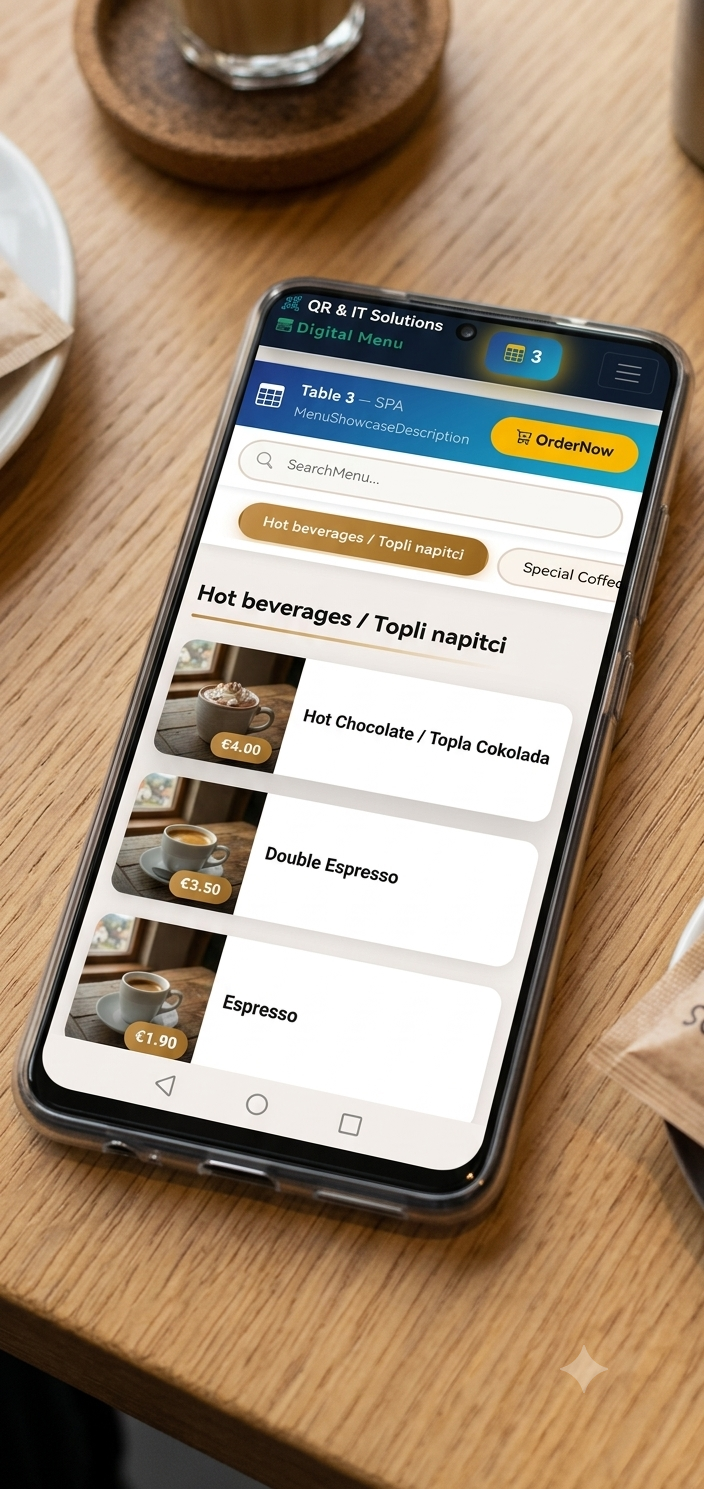
Real screens from the ordering flow for guests and staff.
Key features
Everything a restaurant needs for faster service and better team coordination.
QR ordering
Each table has a unique QR code. Guests scan, browse the menu, and place orders without waiting.
Digital menu
Categories, photos, descriptions, and prices update instantly with no printing overhead.
Order management
Waiters, bar, and kitchen receive and update order statuses in real time.
Admin panel
Manage menu, tables, pricing, categories, and staff permissions from one place.
Localization
Built-in multilingual support (sr-Latn-ME and en-US) with localized page copy.
Events and promotions
Promote active offers and events directly on your branded website.
How it works
A clear flow from scan to service.
1. Scan QR code
Guests scan the table QR code with their phone, with no app install required.
2. Choose dishes
Guests browse the menu and add items to their cart.
3. Confirm order
Order is confirmed and sent immediately to restaurant staff.
4. Prepare and serve
Kitchen/bar gets notified and service is delivered to the table quickly.
Staff and management view
MenuSync goes beyond guest ordering with full operational visibility.
Admin controls
Update menus, prices, categories, tables, and QR codes without technical overhead.
Kitchen and bar display
Incoming orders appear instantly with clear statuses for faster coordination.
Reports and analytics
Track sales, top items, and table load to support better business decisions.
Tech stack
Built on modern, reliable .NET technologies.
ASP.NET Core 10 MVC
Modern web framework for fast and scalable applications.
Entity Framework Core
ORM for database management and migrations.
SignalR
Real-time order updates without refreshing the page.
Bootstrap 5
Responsive UI for phones, tablets, and desktop.
SQL Server / Azure SQL
Reliable data storage in cloud or on-prem infrastructure.
i18n localization
Multilingual content via .resx resources and IStringLocalizer.
FAQ
Common questions before launching MenuSync in a venue.
Ready to speed up restaurant service?
Start a free trial or book a demo and see how MenuSync fits your venue.